
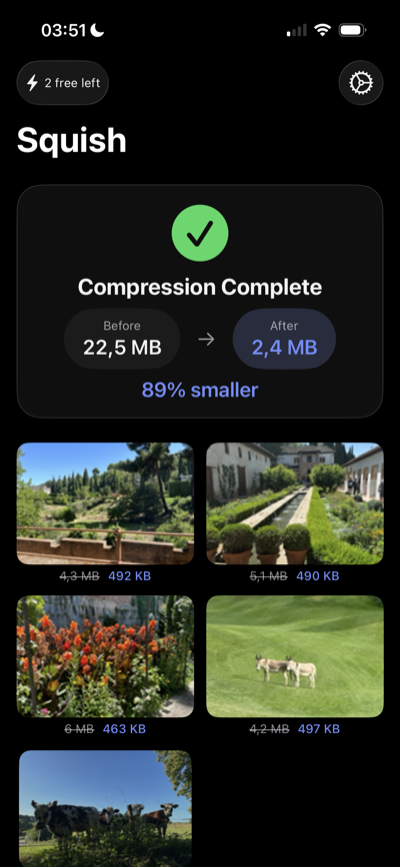
iPhone photos can be large enough to hit email attachment limits, website upload limits, school or work form limits, and message size limits. HEIC usually saves space compared with JPEG, but a single photo can still be several megabytes, especially with modern iPhone cameras.
The fastest fix is to create a smaller copy before you send it. Squish is built for that exact workflow: choose the image, pick a target size, compress locally on your iPhone, then share or save the smaller result.
How to compress iPhone photos for email or upload
- Choose your photo. Open Squish and select a photo from your library, or start from Photos, Files, Mail, Safari, Messages, or another app and choose Squish from the iOS share sheet.
- Pick the right target size. Use 500KB for strict forms, 1MB for most email attachments, 2MB for a good quality/file-size balance, or 5MB when you only need light compression.
- Compress on-device. Squish processes HEIC, JPEG, and PNG files on your iPhone. The original stays untouched, and the compressed copy is ready to share.
- Send, save, or upload. Attach the smaller file to email, upload it to a web form, save it back to Photos or Files, or pass it to another app from the share sheet.
Which photo size should you choose?
Best for strict upload portals, application forms, insurance forms, support tickets, and sites that reject larger images.
A practical default for email attachments and everyday sharing when you want a visibly clear photo without a huge file.
Good when image detail matters, such as receipts, documents, product photos, or screenshots with small text.
Use this when the image is very large and you only need to reduce it enough to fit an attachment or upload limit.
Compress HEIC, JPEG, and PNG on iPhone
Most iPhone camera photos are HEIC or JPEG. Screenshots are often PNG. Squish supports all three, so you do not need to figure out the file type before you start. If the goal is a smaller email attachment or upload, choose a target size and let Squish make a shareable copy.
For sensitive photos, on-device compression matters. Web-based image compressors can require uploading the original image to someone else’s server. Squish keeps the compression step on your iPhone.
Use the iOS share sheet when you are already in another app
If you are looking at the photo in Photos, Files, Mail, or another app, tap the share button and choose Squish. That avoids saving duplicate files manually or switching between apps. After compression, send the smaller result to the destination you were already using.
FAQ
How do I make an iPhone photo smaller for email?
Open the photo in Squish or send it to Squish from the share sheet, choose a target such as 1MB, compress, then attach the smaller copy to your email.
Can Squish compress HEIC photos?
Yes. Squish supports HEIC, JPEG, and PNG, including common iPhone camera photos and screenshots.
Will this reduce photo quality?
Compression reduces file size by changing how the image is encoded. Smaller targets can reduce visible detail, so choose 2MB or 5MB when quality matters more than the smallest possible file.
Does Squish upload photos to a server?
No. Squish processes photos on-device. Your photo does not need to leave your iPhone just to become smaller.